
Sign In and Navigation
How specialists sign in, open classes, choose students, use the student hub, and log out.
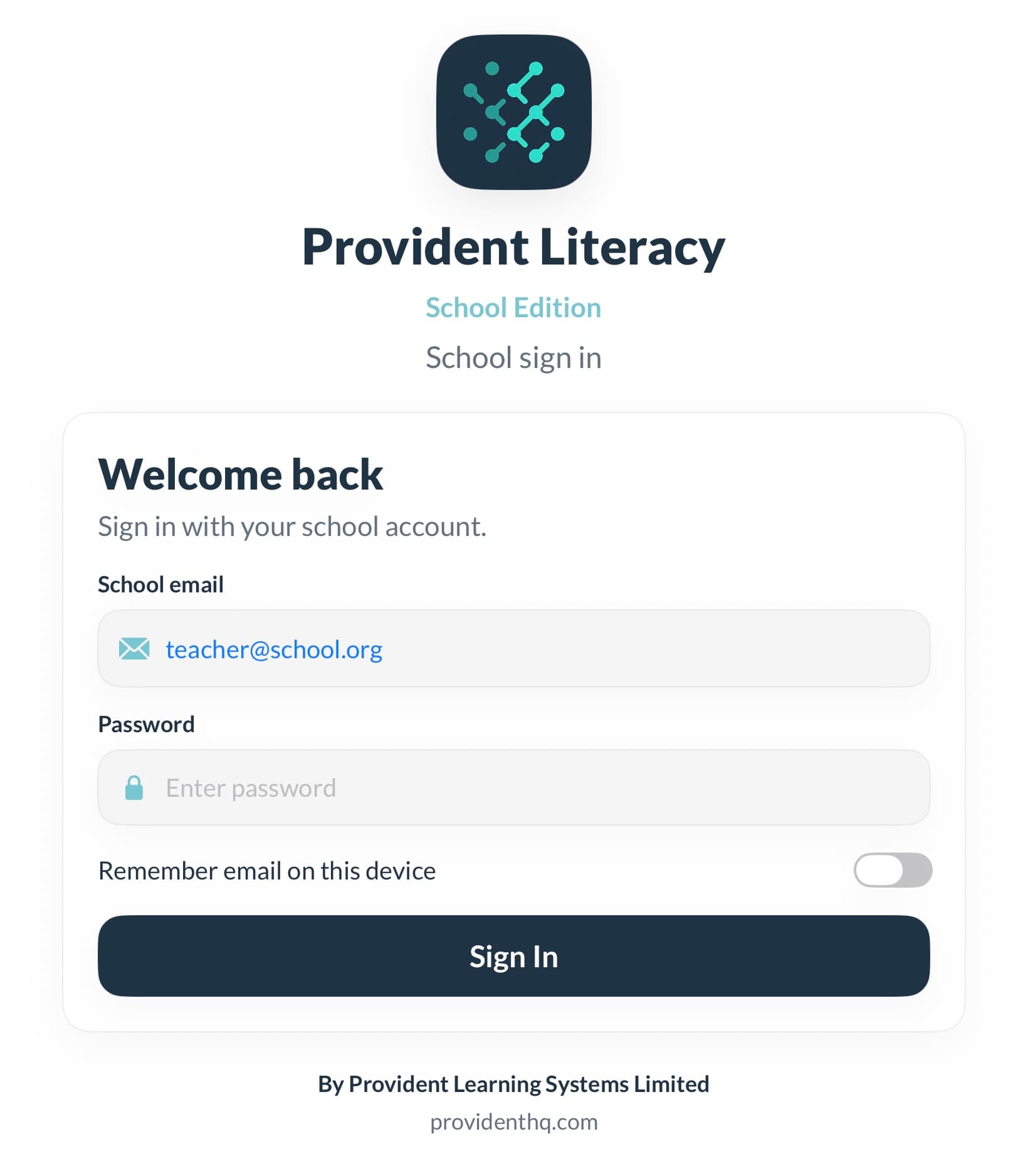
School sign in
On the login screen:
- Enter the school email address.
- Enter the password.
- Optionally enable Remember email on this device.
- Tap Sign In.
Notes
- The app is intended for school-provisioned accounts.
- There is no account creation flow in the app.
- If sign-in fails, verify the account details with your deployment contact.
Classes view
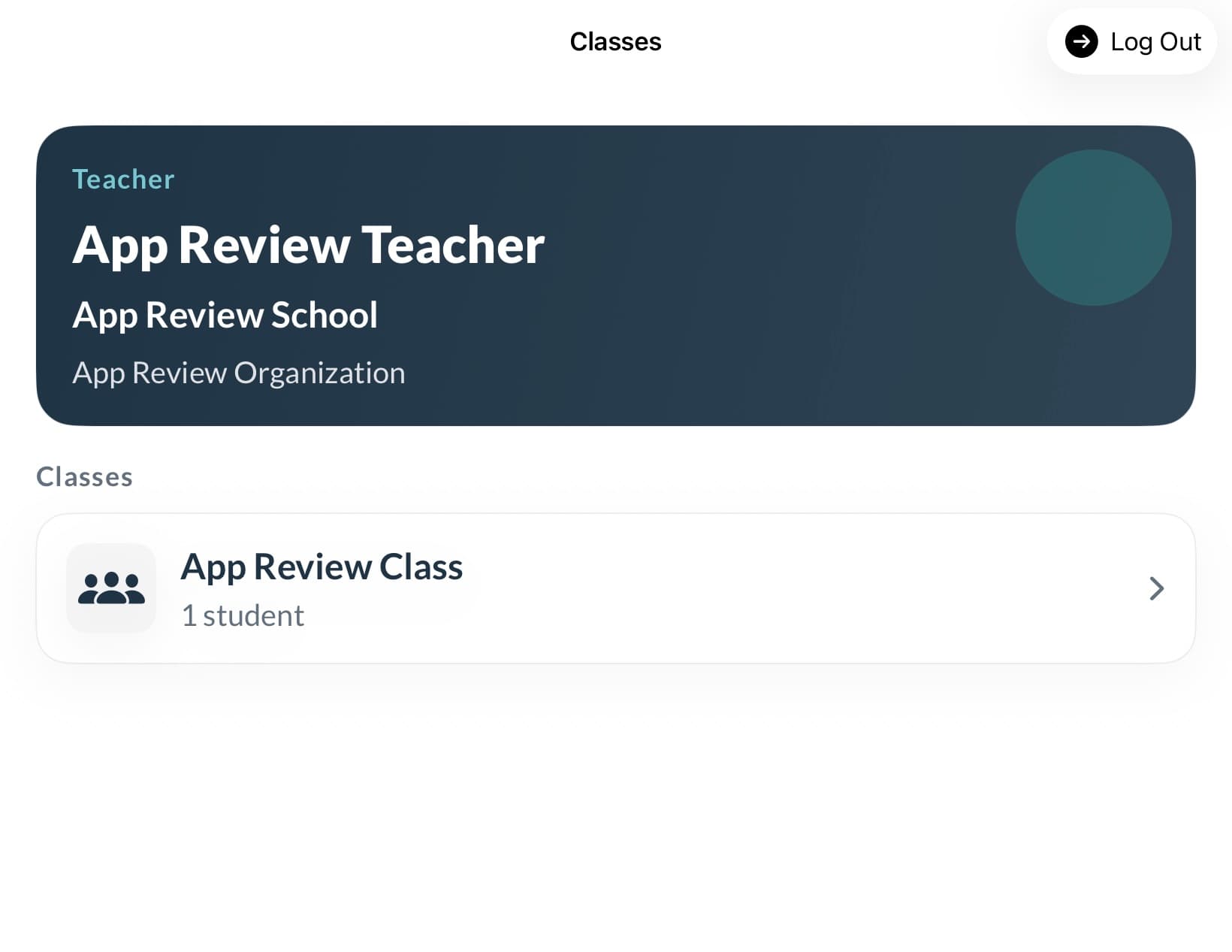
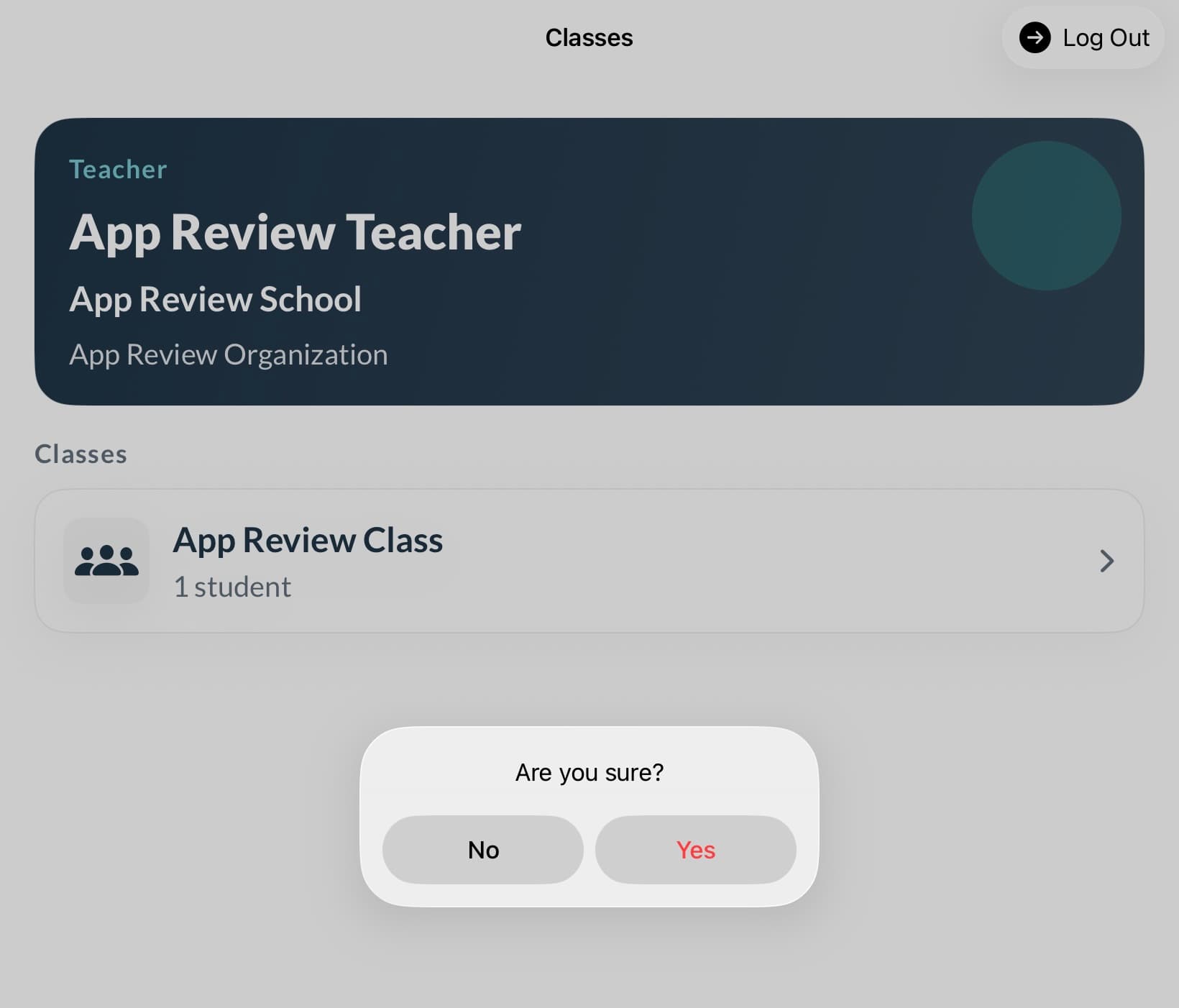
After a successful sign-in, the specialist lands on the Classes screen.
This screen shows:
- the signed-in specialist name
- the school name
- the available classes for that account
To continue:
- Review the class list.
- Tap the relevant class.
Students view
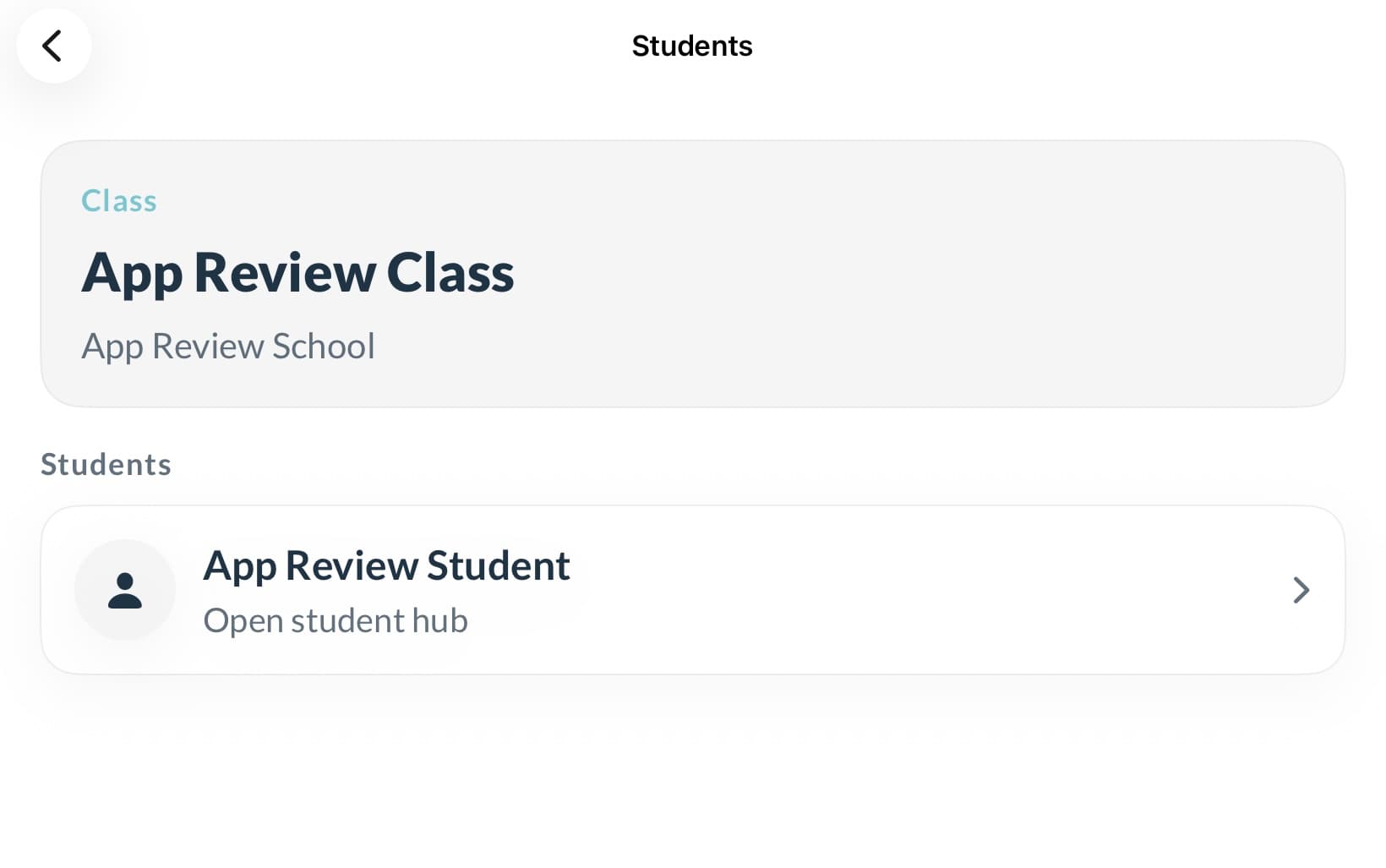
After selecting a class, the specialist lands on the Students screen.
This screen shows the students assigned to that class.
To continue:
- Review the student list.
- Tap the target student.
Student hub
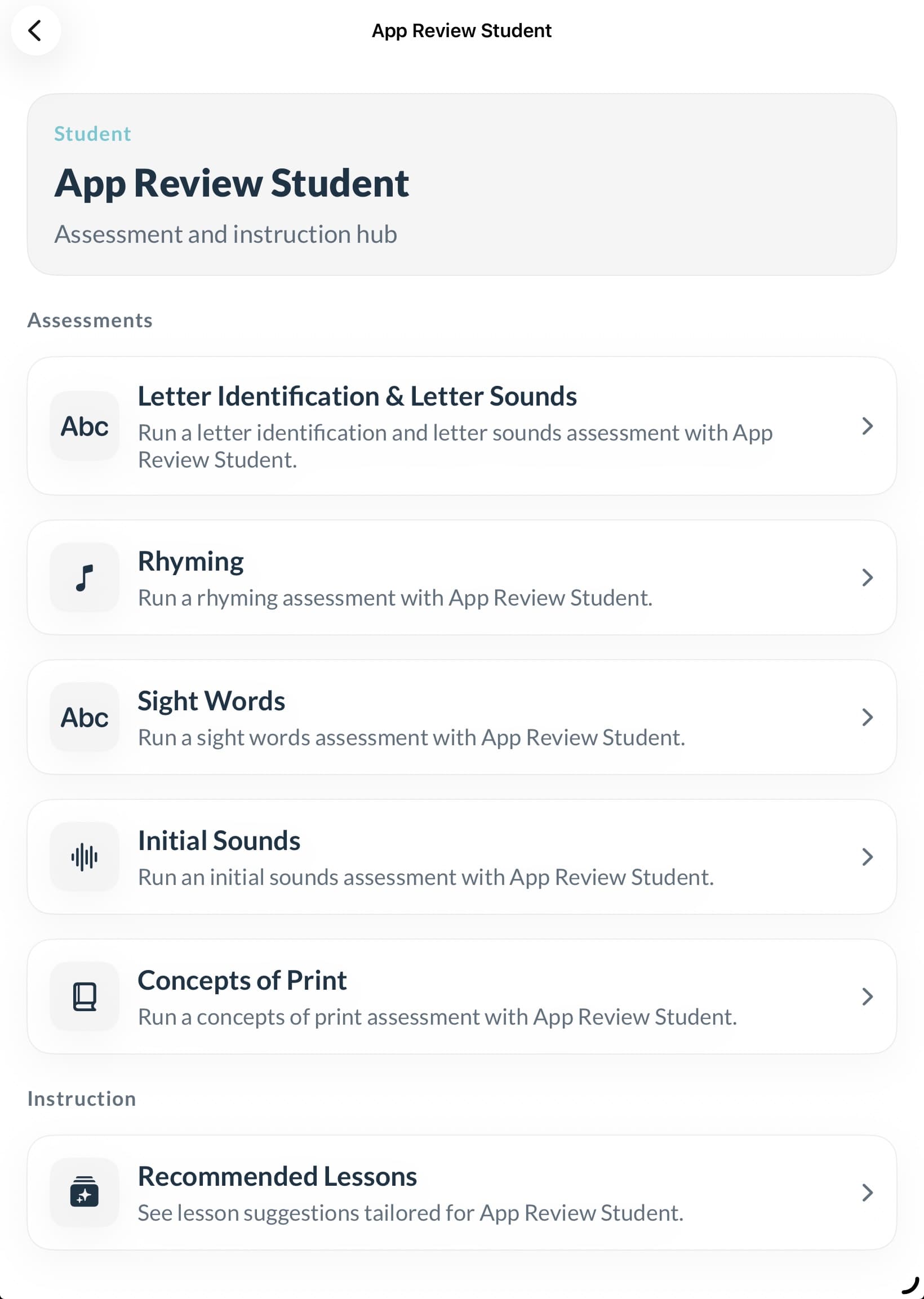
After selecting a student, the specialist lands on the Student Hub.
This is the main working screen for that student. From here, the specialist can open:
- Letter Identification & Letter Sounds Assessment
- Rhyming Assessment
- Sight Words Assessment
- Initial Sounds Assessment
- Concepts of Print Assessment
- Recommended Lessons
Log out
To sign out:
- Tap Log Out in the top-right corner.
- Confirm the modal by selecting Yes.
If No is selected, the specialist remains signed in.
Recommended navigation pattern for specialists
A clean working pattern is:
- Sign in once at the start of the session block.
- Open the required class.
- Move student-by-student from the Students screen.
- Return to the student hub between assessments.
- Log out when the session or day is complete.
Next step
Once the specialist reaches the student hub, they can open an assessment.