
Download and Install
How specialists download Provident Literacy from the App Store and prepare to sign in.
Before you begin
Make sure you have:
- an iPad supported by your school or organisation
- internet access
- a school-provisioned account from Provident or your organisation
- your sign-in email address and password
Provident Literacy does not support self-service account creation in the app. Accounts are provisioned by Provident or by the school deployment process.
Download the app from the App Store
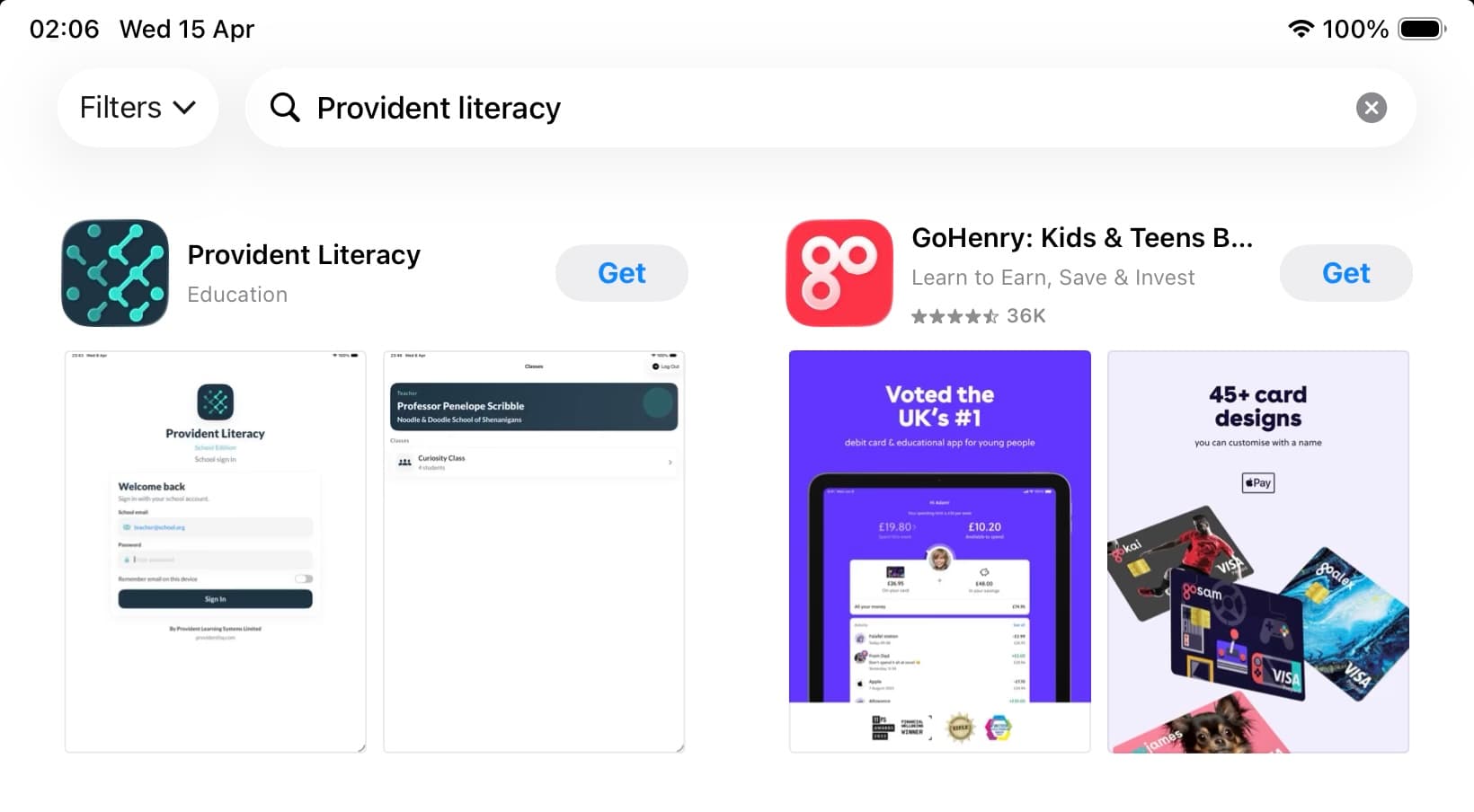
- Open the App Store on the iPad.
- Search for Provident Literacy.
- Open the app listing.
- Tap Get or the download icon.
- Wait for the installation to complete.
- Tap Open.
First launch
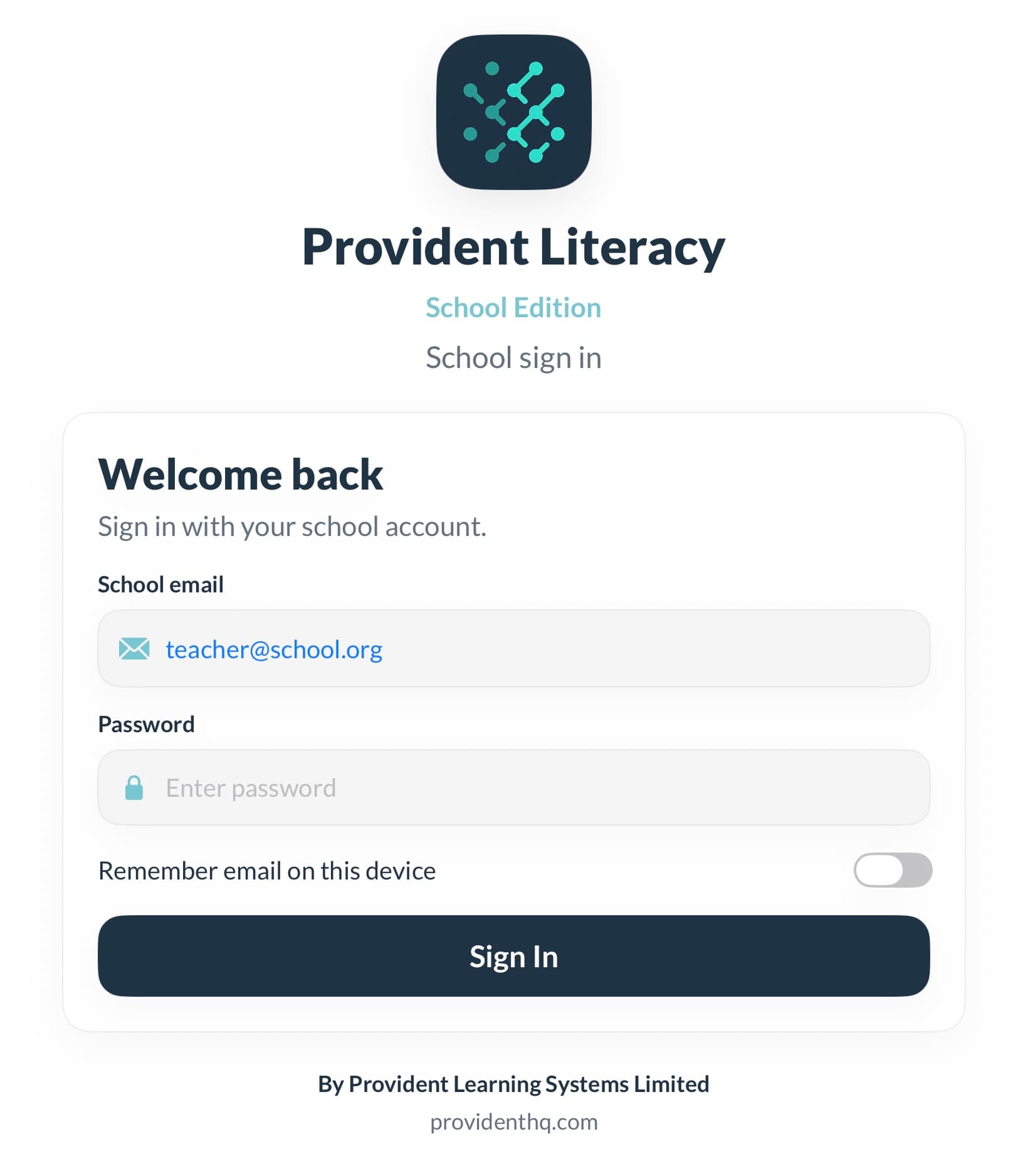
On first launch, the app opens to the School sign in screen.
At this point, the specialist should:
- confirm the correct app has been opened
- confirm they are using the correct school account
- make sure they have a reliable internet connection
Update the app
To make sure the iPad is running the latest approved version:
- Open the App Store.
- Search for Provident Literacy.
- If an update is available, tap Update.
For managed school devices, updates may be pushed by the IT department.
What to do if you cannot install
Check the following:
- the iPad has access to the App Store
- your Apple ID or school-managed device policy allows app installation
- enough storage is available on the device
- the iPad is connected to the internet
If installation is blocked by school device policy, contact your device administrator or IT department.
After installation
The next step is signing in and navigating to the right student.