
Lessons and Follow-up
How specialists use recommended lessons, lesson details, and story playback after assessment.
This page explains the instructional follow-up flow available from the student hub.
Recommended Lessons
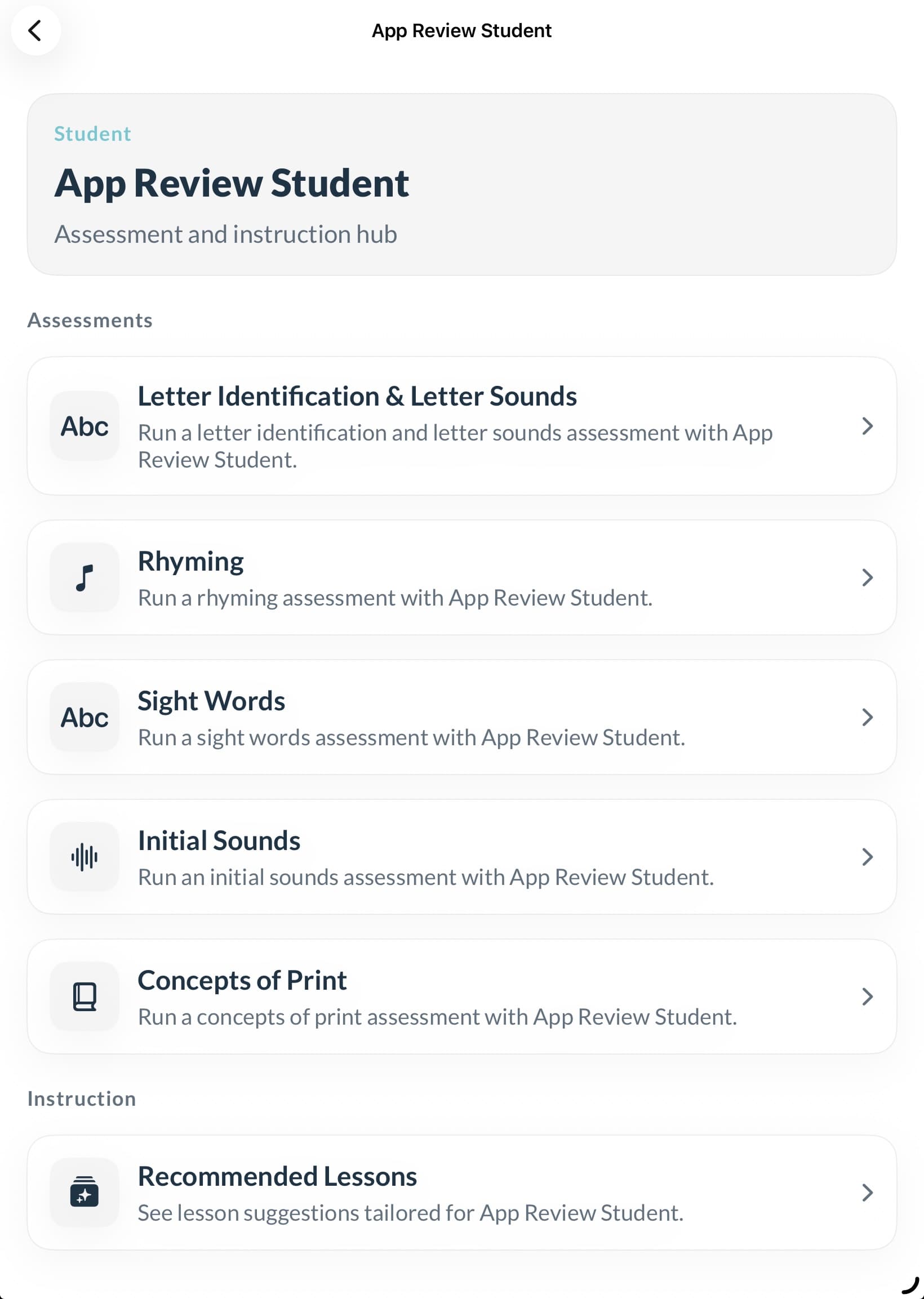
From the student hub, the specialist can open Recommended Lessons.
This area is used to review instructional options for the selected student.
Typical uses include:
- reviewing suggested follow-up instruction
- choosing the next lesson for a student
- checking lesson details before running instruction
Lesson detail
When a specialist opens a lesson, the app may show:
- lesson title
- lesson description or instructional framing
- lesson components or activities
- story or media-linked content where relevant
Use the lesson detail view to decide whether the lesson is appropriate for the student’s current needs.

Story player
Some lesson flows include story playback or story-linked instructional content.
The specialist should:
- open the story player from the lesson flow
- make sure the student can see the screen clearly
- guide the student through the lesson as needed

Suggested specialist workflow after an assessment
A useful pattern is:
- Complete the assessment.
- Return to the student hub.
- Open Recommended Lessons.
- Review the suggested lesson.
- Open the lesson detail.
- Use the lesson or story content as the next instructional step.
When to use lessons
Use instructional follow-up when you want to:
- reinforce a newly identified need
- provide immediate targeted practice
- move from assessment into guided instruction in the same session
Return path
After reviewing or using a lesson, return to the student hub to:
- open another assessment
- choose another lesson
- move back to the student list