
Assessments
Specialist workflow for assessment intro screens, settings, live assessments, and completion within Provident Literacy.
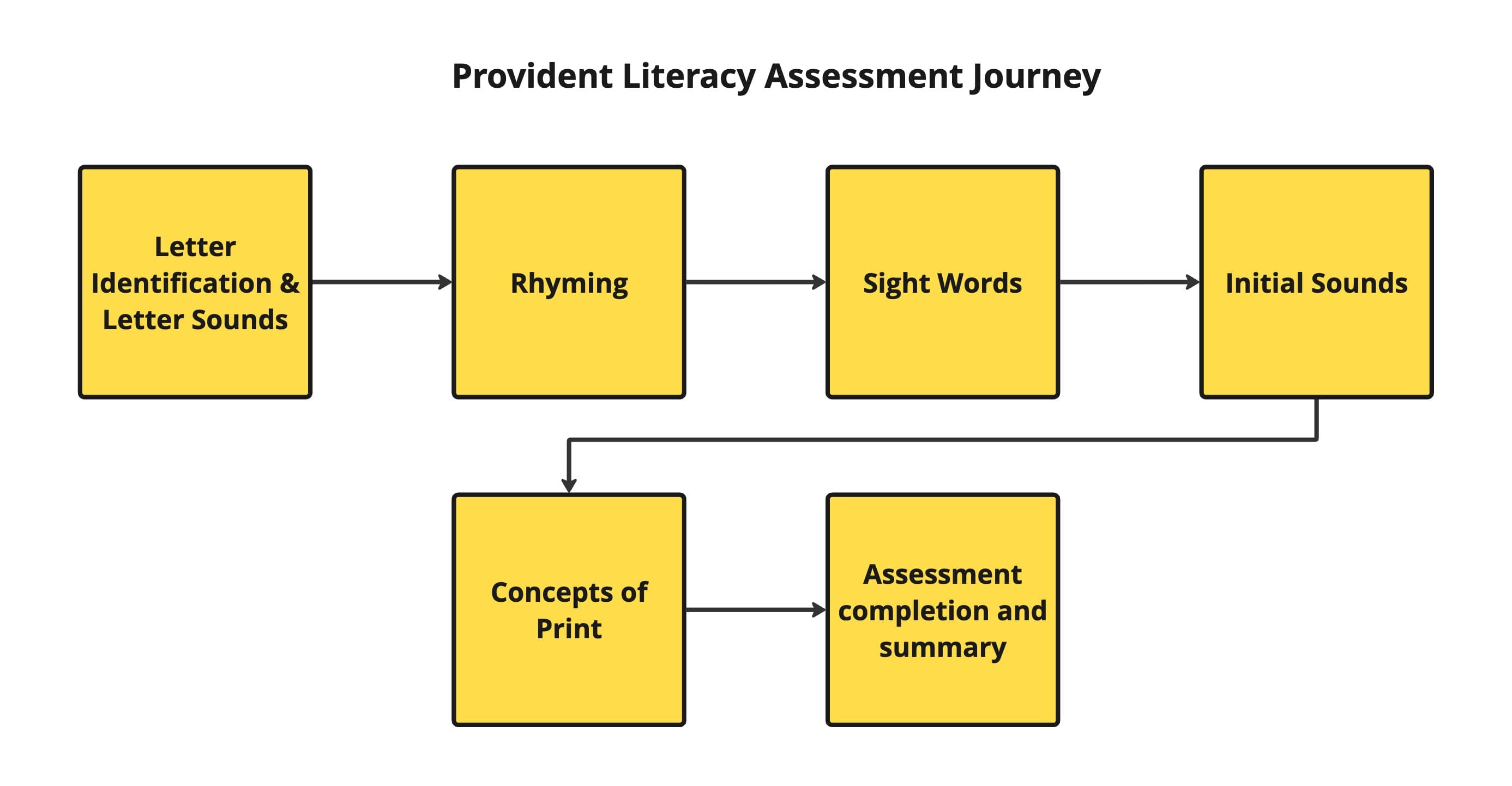
This page explains the assessment flows available from the student hub.
Assessment pattern used across the app
Most assessments follow the same structure:
- Open the assessment from the student hub.
- Review the intro page.
- Tap Continue to Settings.
- Adjust the pre-assessment settings.
- Tap Start Assessment.
- Run the live assessment with the student.
- Review completion or summary information.
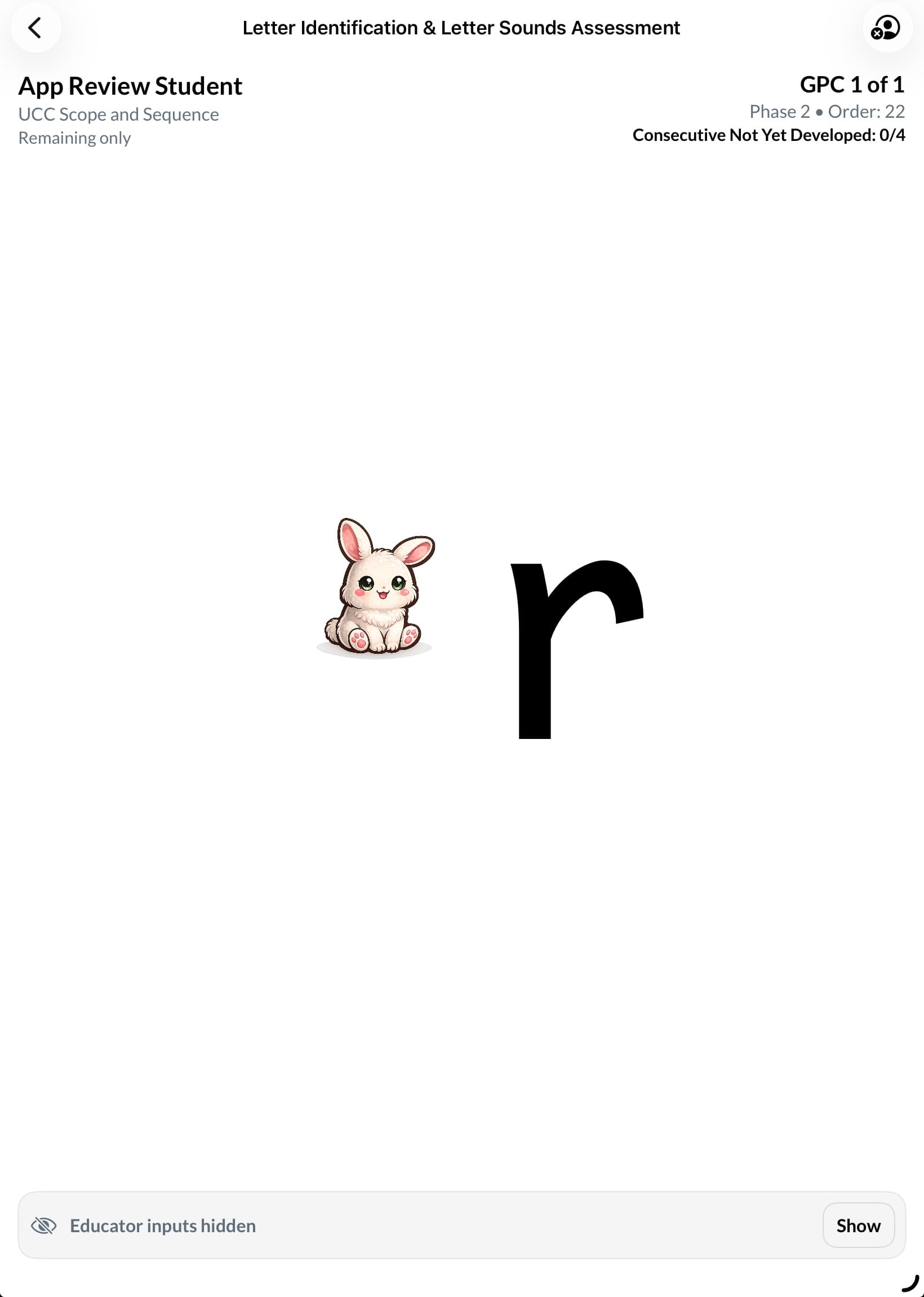
1. Letter Identification & Letter Sounds Assessment
This assessment supports educator-led checking of letter identification and letter-sound knowledge.
Typical flow
- Review the intro page.
- Choose the assessment settings.
- Present one grapheme at a time.
- Record educator inputs.
- Continue until the session ends.
Settings typically available
Depending on implementation and data state, the specialist may see options such as:
- lowercase / uppercase / all
- remaining only / retest all
- educator inputs to capture during the session
- stop-rule or completion settings
During the live assessment
The specialist should:
- show the grapheme to the student
- use the prompt image if enabled
- record the student response accurately
- score before moving forward
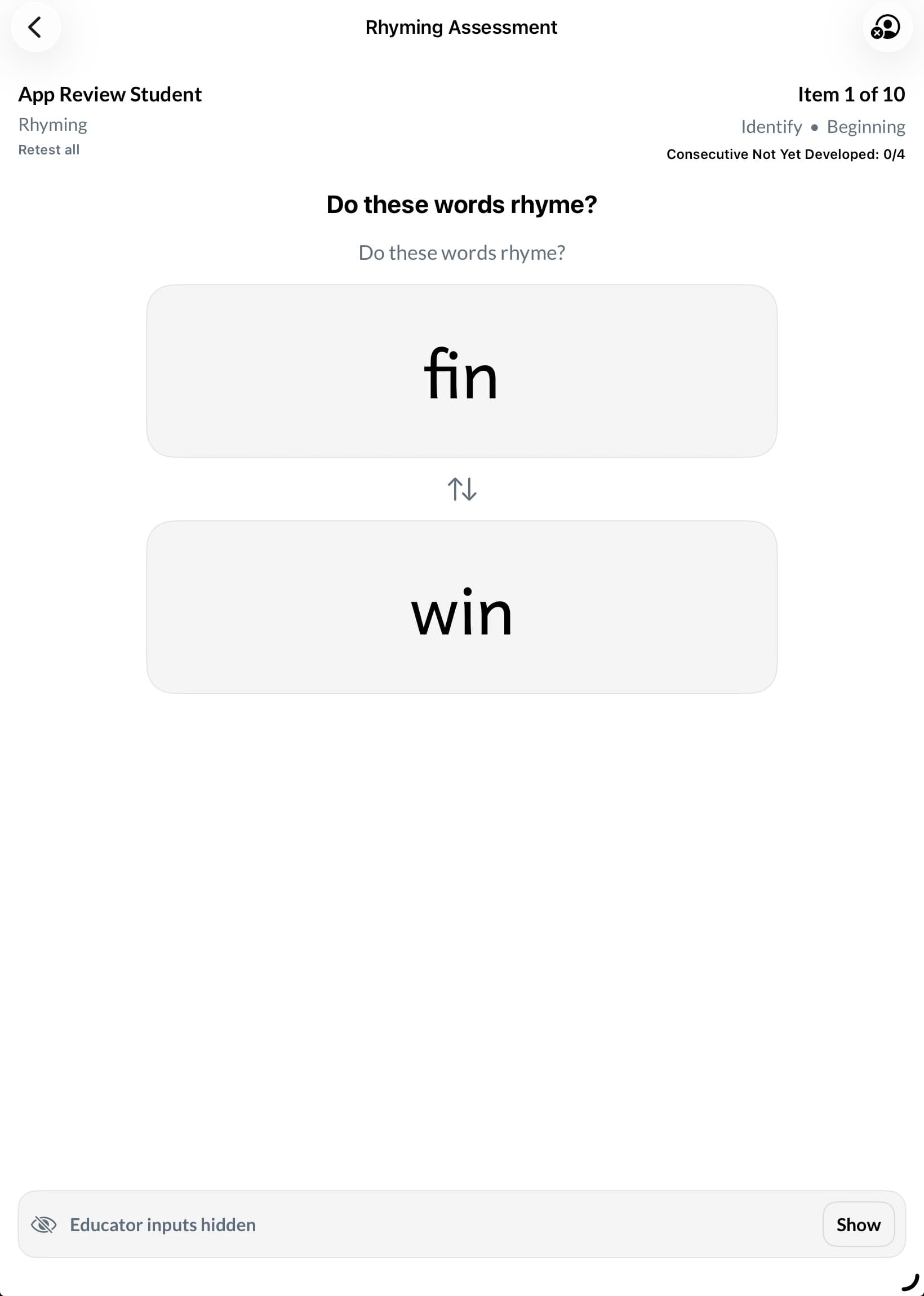
2. Rhyming Assessment
This assessment checks whether the student can hear and produce rhyming words.
Typical flow
- Review the intro page.
- Choose settings for the session.
- Model the task if needed.
- Record each response.
- Apply the scoring choice before moving on.
Specialist notes
- Use clear oral delivery.
- Keep the pace steady.
- Record the observed response before final scoring.
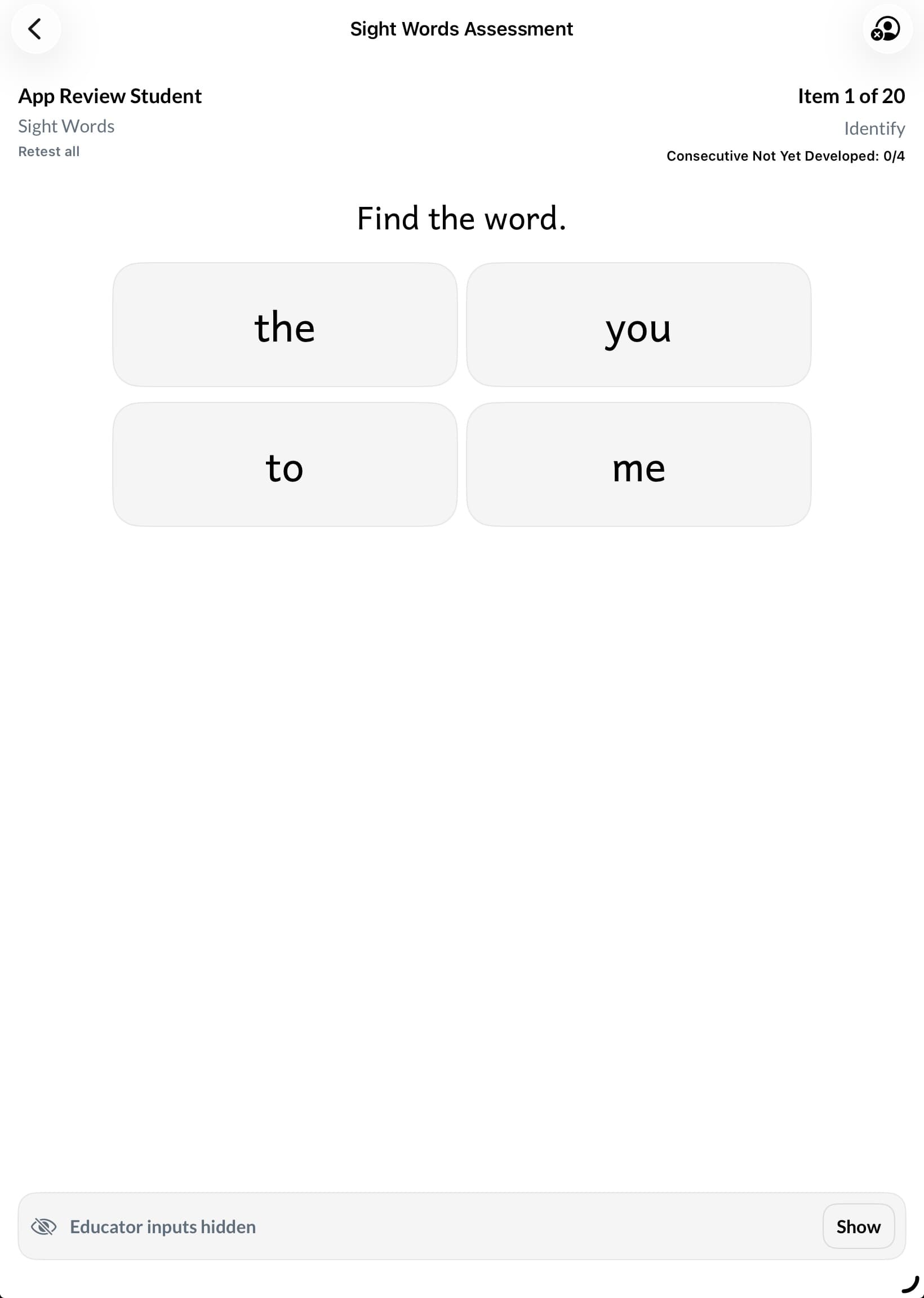
3. Sight Words Assessment
This assessment checks whether the student can identify and read target sight words.
Typical flow
- Open the intro page.
- Continue to settings.
- Choose the session mode.
- Run identify, read, or combined word tasks.
- Record the outcome and move forward.
Specialist notes
- For identify items, say the target word clearly.
- For read items, allow the student to view the printed word.
- Record the response before scoring.
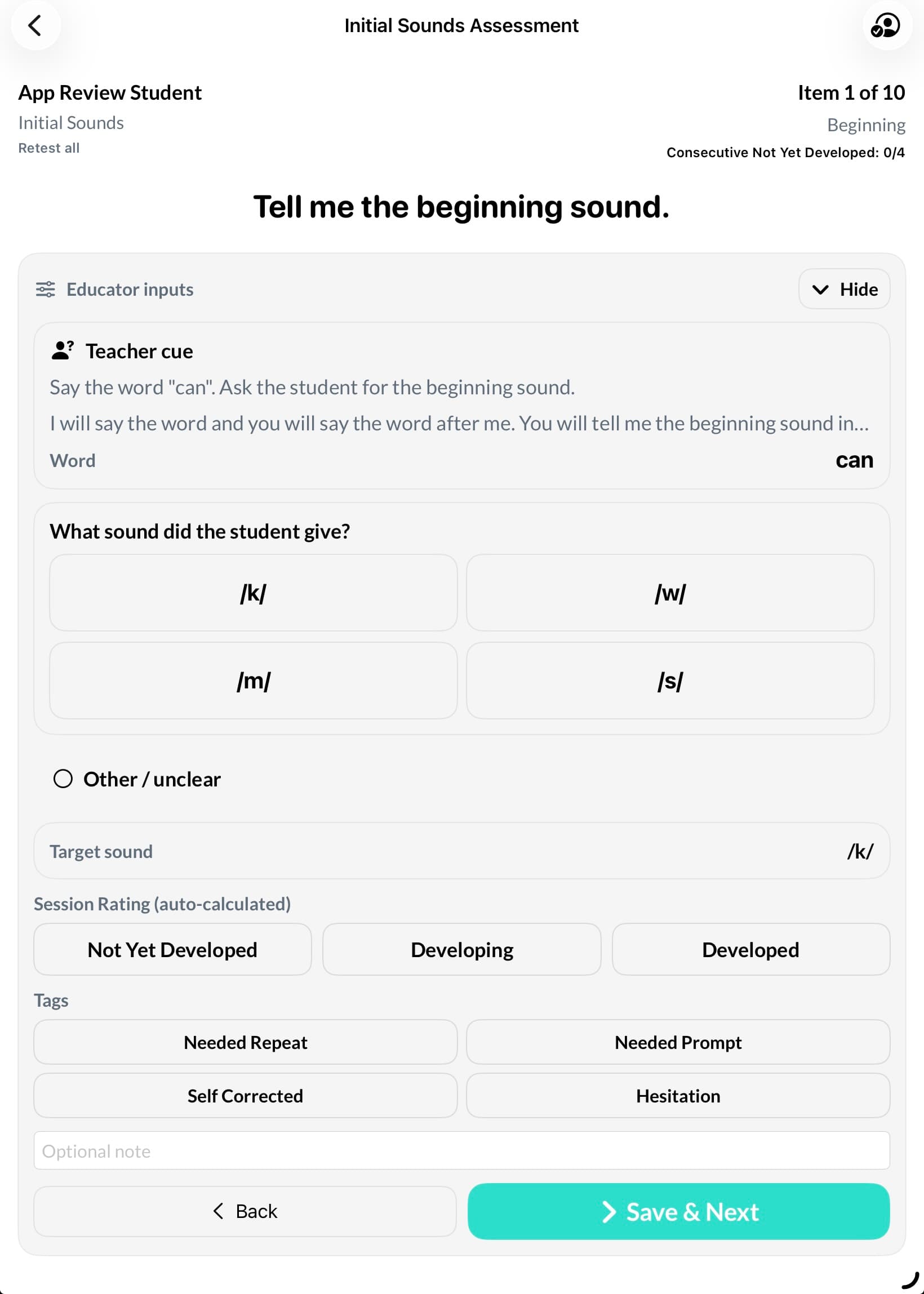
4. Initial Sounds Assessment
This assessment focuses on beginning sounds in spoken words.
Typical flow
- Review the intro page.
- Continue to settings.
- Configure the run if needed.
- Present one item at a time.
- Record the sound the student produces or identifies.
Specialist notes
- Say the word clearly.
- Ask for the beginning sound.
- Use “Other / unclear” when the response does not match the available choices.
5. Concepts of Print Assessment
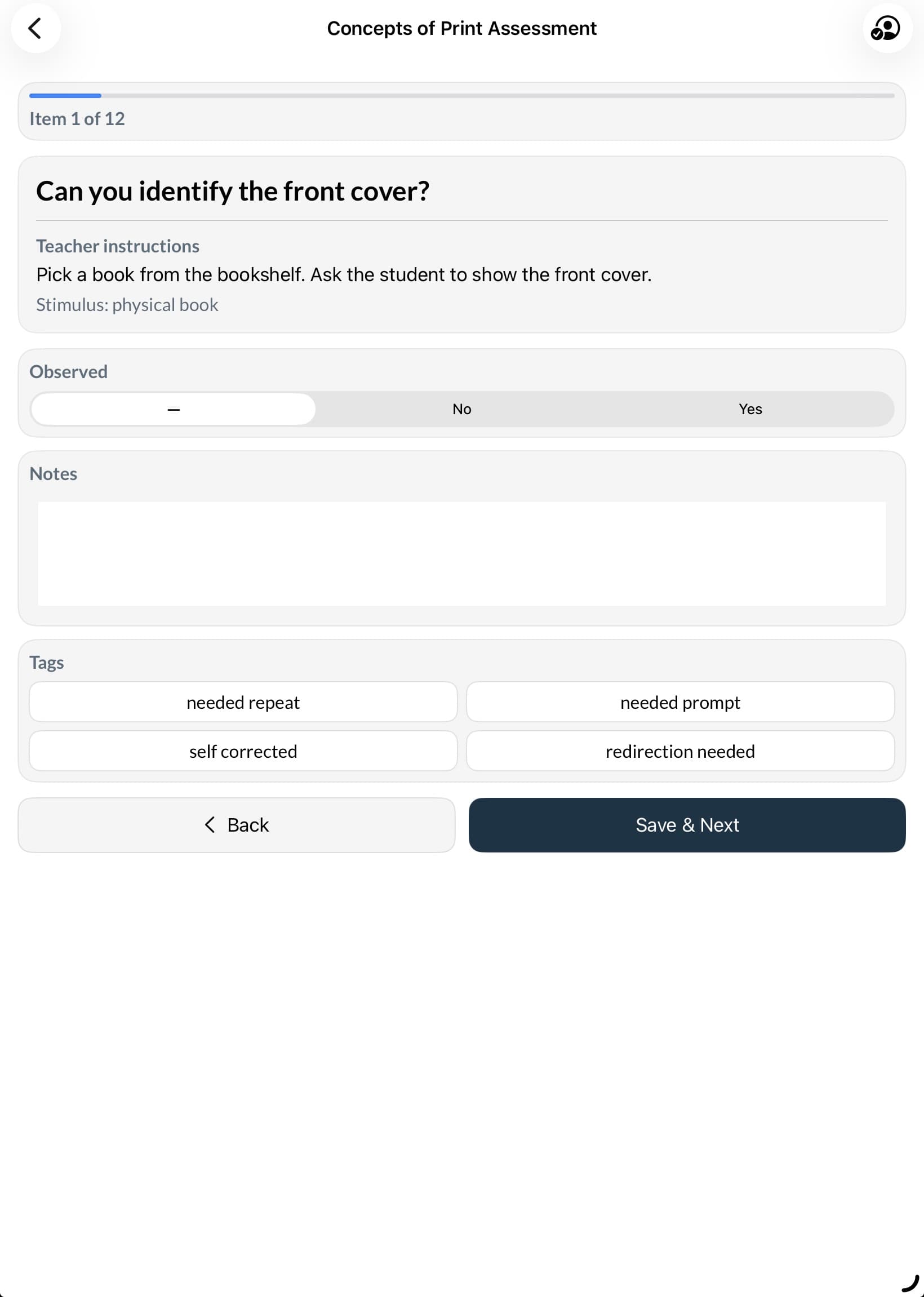
This assessment supports observation of book handling, print concepts, and related early literacy behaviours.
Typical flow
- Review the intro page.
- Continue to settings.
- Choose categories, task types, and session mode.
- Use the selected physical book or printed material where required.
- Record the observed response.
Specialist notes
- Prepare the physical book before starting.
- Use notes where helpful.
- For narrative or oral response items, enter a short summary if needed.
Assessment completion and summary
At the end of an assessment flow, the specialist should:
- review the outcome shown in the app
- return to the student hub
- decide whether to run another assessment or open recommended lessons
Good practice for specialists
- Review the intro page before starting a new assessment type.
- Confirm settings before the student begins.
- Record responses immediately.
- Avoid skipping items without a reason.
- Use the student hub as the return point between activities.
Next step
After an assessment, specialists can move into instructional follow-up.