
Provident Literacy for Schools
Specialist guide for downloading, signing in, navigating classes and students, running assessments, and using instructional follow-up in Provident Literacy.
Provident Literacy is an iPad app for school-based literacy assessment and instructional follow-up. This guide is written for a specialist assessing students in a school setting.
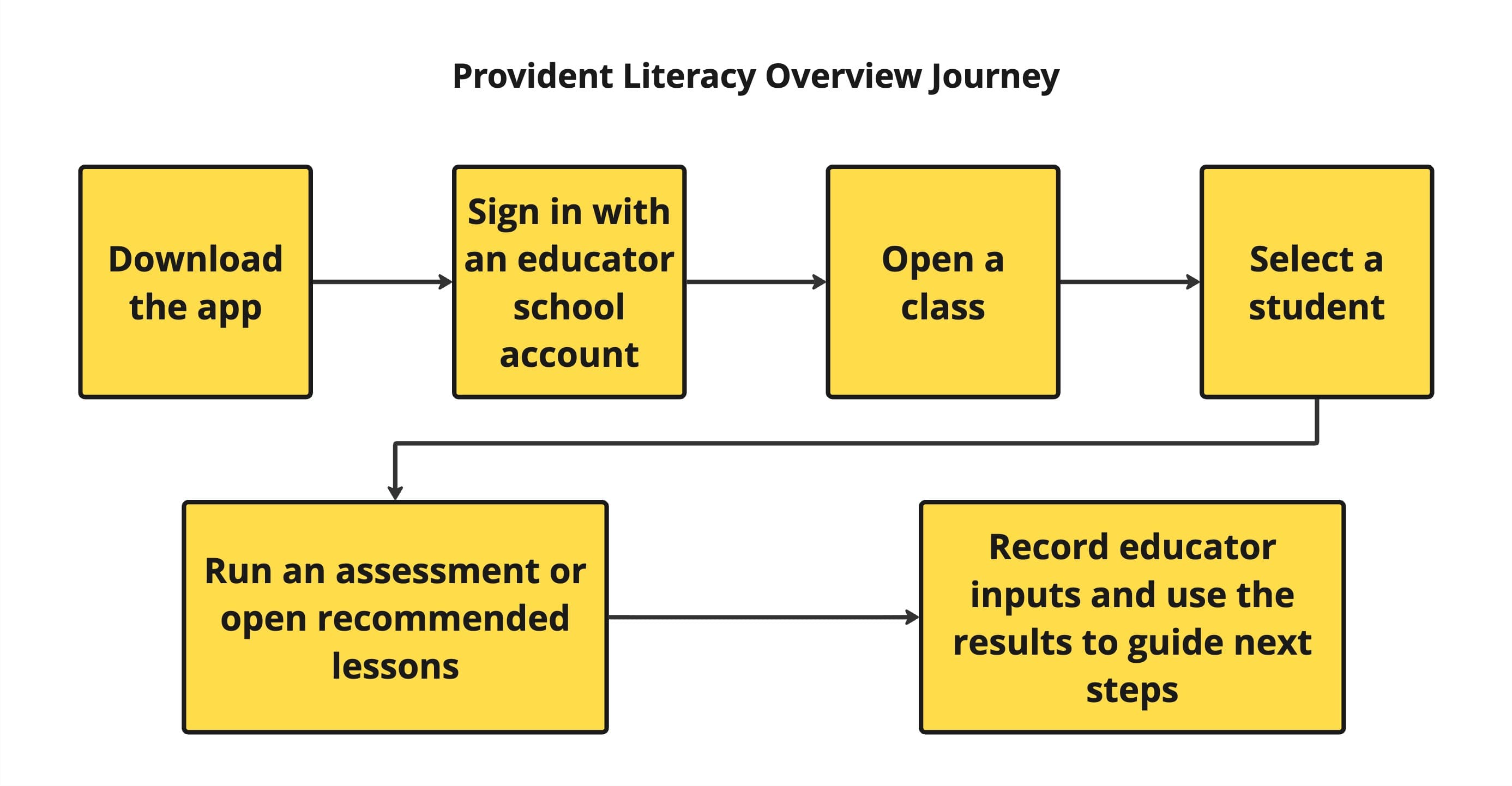
The app is designed around a simple flow:
- Download the app from the App Store.
- Sign in with a school-provisioned account.
- Open a class.
- Select a student.
- Run an assessment or open recommended lessons.
- Record educator inputs and use the results to guide next steps.
Who this guide is for
Use this guide if you are:
- a literacy specialist
- a reading interventionist
- a SEN / SEND specialist
- an instructional coach
- a teacher or staff member carrying out structured literacy assessments with students
What the app supports
Provident Literacy currently supports the following specialist-facing flows:
- School sign in
- Class list
- Student list
- Student hub
- Letter Identification & Letter Sounds Assessment
- Rhyming Assessment
- Sight Words Assessment
- Initial Sounds Assessment
- Concepts of Print Assessment
- Recommended lessons
- Lesson detail and story player
- Secure log out
Start here
1. Download and install
Go to the installation guide for App Store download steps, prerequisites, and first launch notes.
Open the download and install guide
2. Sign in and navigate
Go to the navigation guide for login, class selection, student selection, student hub usage, and log out.
Open the sign in and navigation guide
3. Run assessments
Go to the assessments guide for the full assessment flow, including intro, settings, live assessment, and completion screens.
4. Use lessons and follow-up
Go to the lessons guide for recommended lessons, lesson details, and story playback.
5. Troubleshooting
Go to the troubleshooting guide for common issues and what to do next.
Open the troubleshooting guide
Typical specialist workflow
A typical specialist session looks like this:
- Sign in with the school-provisioned account.
- Open the relevant class.
- Select the target student.
- Review the student hub.
- Open the required assessment.
- Review the intro page and select Continue to Settings.
- Adjust the assessment settings where needed.
- Run the live assessment with the student.
- Save or review the outcome.
- Open recommended lessons if follow-up instruction is needed.